
Take Your Dating Life Onto IPhone
The PositiveSingles iOS app gives iPhone users a way to explore an STI-aware dating community from a device they already carry. Its appeal is the combination of a specific audience and everyday convenience: you can read an introduction, think about your reply, and return to a promising exchange when you have time to give it attention.
You do not have to make dating a constant background activity. An app can support a deliberate routine just as easily as a spontaneous one. You might use a quiet evening to discover people, then check one or two conversations the following day. What matters is whether the experience helps you connect with people whose interests and intentions feel compatible with yours.
For a broader introduction to the community, the PositiveSingles app overview explains its audience and dating value. The iPhone-specific choices below help make that first session smoother.
Download the Correct App Store Listing
Use the iOS download button to open the approved route to the App Store. The listing identifies the app as Positive Singles: Herpes Date, from PS Support, Inc. Verify the app identity before installing, especially if you searched manually and saw similarly named products. The Apple listing retrieved for this guide specifies iOS 14.0 or later; the live store compatibility panel is the authority for your particular device.
The download is free, with paid subscription options available. Installing an app does not give every account every premium capability. You can explore the free membership boundaries before deciding whether to buy additional access. Avoid making a purchase simply to get past a screen you have not read carefully.
If you already have a PositiveSingles account, sign in with the method associated with it. A familiar email address, Apple sign-in, or another supported method may be relevant depending on how you originally joined. Do not create a replacement profile just because an old password is difficult to remember; account recovery is usually the more useful first step.
Build a Profile That Reads Well on a Small Screen
Start with a photograph in which your face is easy to recognize at thumbnail size. A crowded group picture or a distant landscape may be attractive, but it makes a poor first introduction when displayed in a compact discovery view. Save wider contextual photographs for later in the sequence, where they can tell a story about your interests.
Write your bio in short paragraphs with one idea in each. A simple opening might describe the kind of weekend you enjoy, followed by what you would like to share with a partner. Give someone a detail they can use in a first message. Specificity is more inviting than a list of qualities such as kind, fun, and adventurous without any illustration of what they mean to you.
Preview the actual result before adding more text. If the first visible lines are all qualifications, warnings, or vague slogans, move a concrete personal detail forward. Our photo selection guide offers a way to review the sequence without judging every image by perfection.
See More of a Person Before You Say Hello
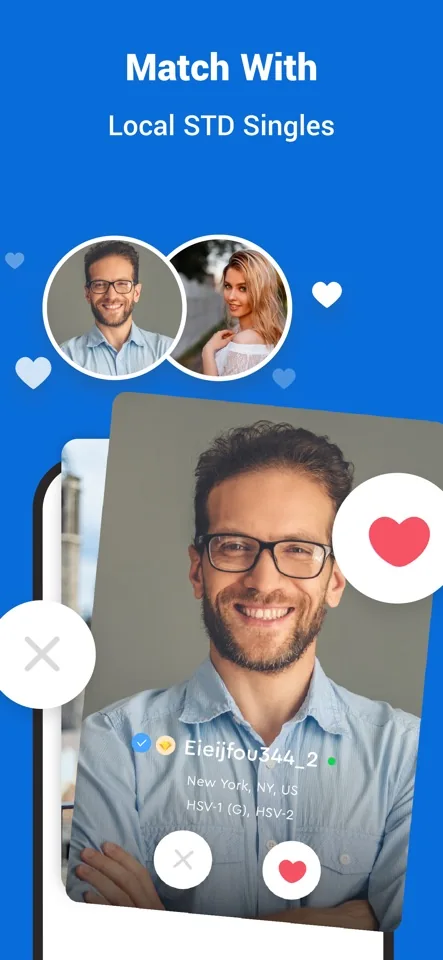
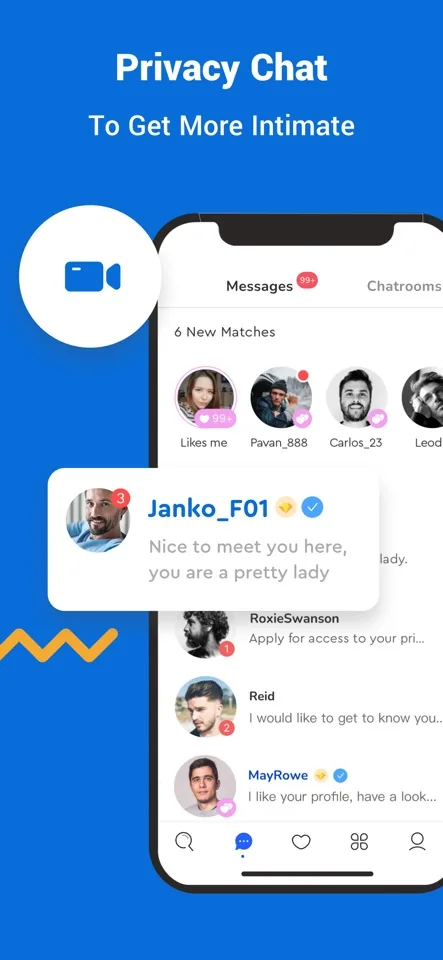
The official iPhone promotional screens show profile discovery, community writing, private albums, and conversation. Together, they suggest a dating experience with more than one opening: a face can catch your attention, a profile can reveal an interest, and a contribution can show how someone thinks. Choose the route that gives you something genuine to ask about rather than treating every profile as a quick yes or no.
Imagine discovering someone who describes the same kind of weekend you enjoy. You can begin with that detail, learn how they spend their time, and decide whether the shared interest is part of a wider fit. The phone makes returning to the exchange convenient; the community gives it a relevant starting context. That combination is the reason to download, while the settings below help make the experience comfortable in your day.
Keep Conversation Previews at Your Comfort Level
Your iPhone's notification settings influence what appears when a message arrives. Those device controls are separate from the dating profile and any privacy features inside the app. Review the app's notification options in iOS Settings and decide whether previews should appear on your locked screen, after unlocking, or only when you open the app, according to the options available on your device.
This is particularly useful when your phone rests on a meeting table, charges in a shared room, or is occasionally borrowed. A quiet notification style can let you choose when to respond without publicly displaying the conversation. It does not make the app invisible, and someone with access to an unlocked device may still see information.
Try your selected settings in an ordinary situation. A setting name can sound reassuring while the actual screen behavior surprises you. The phone privacy walkthrough separates screen visibility, photo access, and profile sharing so you can address the concern you actually have.
Make Photo Access a Deliberate Choice
When an app asks to use photos or a camera, connect the request to the action you are taking. Adding a profile photograph is a sensible time to review photo access. Grant only the access you need from the options iOS presents, and revisit it in Settings if your preference changes. Permission labels vary with operating system versions.
Before uploading, inspect the whole image, including reflections and the background. Remove photographs containing a home address, an employer badge, a boarding pass, or people who have not agreed to appear. This review is about the contents of the picture, not just the permission used to select it.
Choose images you would be comfortable having another person see outside the exact moment of sharing. Private album controls can influence who is invited to view an image, but they cannot guarantee that viewers will never copy or describe it. A measured choice at upload time is useful even when the app offers additional privacy settings.
Know Where an Apple Subscription Lives
If you purchase through Apple's in-app billing, subscription management belongs to the Apple account used for that purchase. That can differ from the email address on your dating profile. Keep the receipt so you can identify the billing channel and account later, especially if you also use the website.
On current Apple guidance, you manage subscriptions through Settings, your name, and Subscriptions. Review the renewal information there and follow the available cancellation steps when you want to stop future billing. Removing the app from the home screen is not the same as canceling a subscription. Deleting a dating profile is also a separate decision with separate consequences.
The subscription guide explains how to distinguish Apple, Google Play, and website purchases. When a charge is unclear, identify the receipt before trying unrelated account settings. Avoid buying a second plan while you are still resolving access to an existing purchase.
Give a Good Conversation Your Attention
Once your profile is ready, make the app useful by choosing a small number of people you genuinely want to know. Read beyond a photograph, notice a shared interest, and write a message that belongs to that person. You can respond warmly without sharing your phone number or moving to another service immediately.
If a conversation becomes mutual, agree on the next step together. That might be continuing to chat, arranging a call through an available feature, or making a simple public meeting plan. Your pace is part of compatibility, not an obstacle you must apologize for.
Download PositiveSingles on iPhone when you are ready to make that first introduction. Start with the account and profile choices you can control, and let the relationship possibilities develop through actual conversation.
Platform sources: Apple App Store listing and Apple subscription cancellation guidance. Compatibility checked September 25, 2026.